
When it comes to the word of self hosting you’d most probably hear the term ‘exposed to the internet’. The most common way to get this done is by port forwarding on your router. But here’s the thing, to get this done you need to not be behind something called a CGNAT.
Basically the reason why ISP’s use a CGNAT is well, cost. IP addresses are scarce, especially IPv4 (not so much the case for IPv6) and if your ISP were to give all their customers their own public IP it would cost them quite a bit. So what they do is give their customers private IP addresses and then put them behind something called a NAT (Network Address Translation) layer, basically a big router and then give them internet access like that.
Usually this would work well for everyone, but if you want to expose services to the internet then, not so much.
There are two ways that I’m basically gonna cover:
- Cloudflare tunnels
- Tailscale + VPS
1. Cloudflare tunnels
Cloudflare tunnels is by far the easiest solution, however the caveat is that you need a domain that points to their name servers (you can get 1.111b class domain for 99c)
Once you point your name servers to Cloudflare and everything is setup, go to the Cloudflare dashboard. Scroll down and click on Zero Trust. You should end up on a page like this:
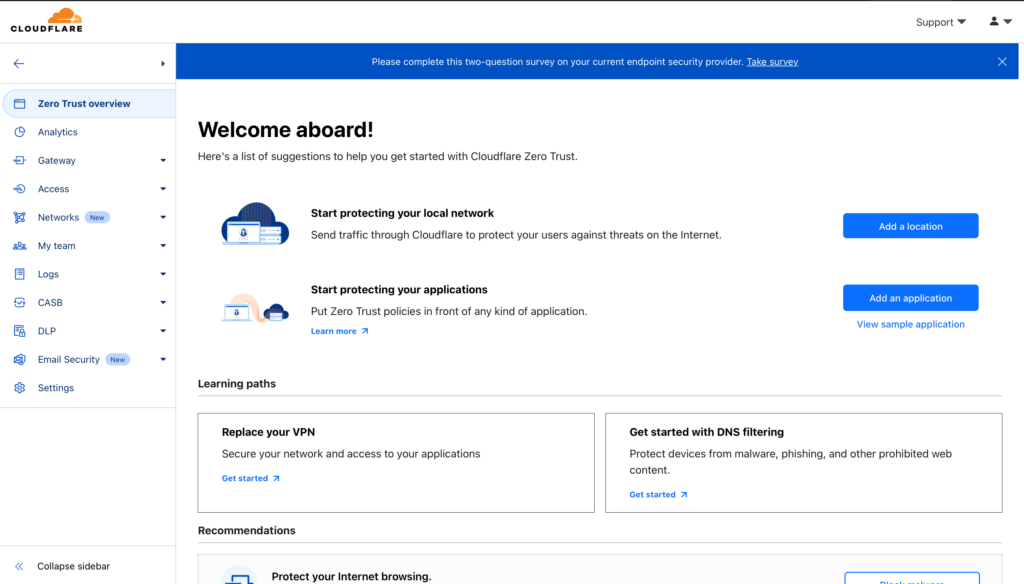
Click on Networks, Tunnels and then click Add a new tunnel
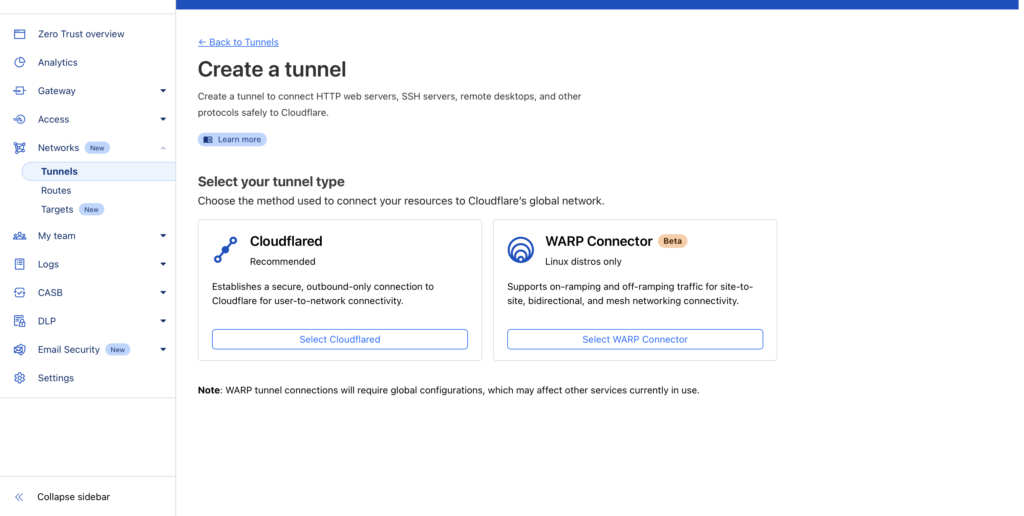
Select Cloudflared and then click next, give your tunnel a name.
Now we’re left with installing the Cloudflare connector on your server, select the respective operating system. Or you can select docker, like what I’m going to do:
docker run cloudflare/cloudflared:latest tunnel --no-autoupdate run --token <YOUR OWN CLOUDFLARE TOKEN>Once you have that set up, click next. You’ll end up on a page similar to this
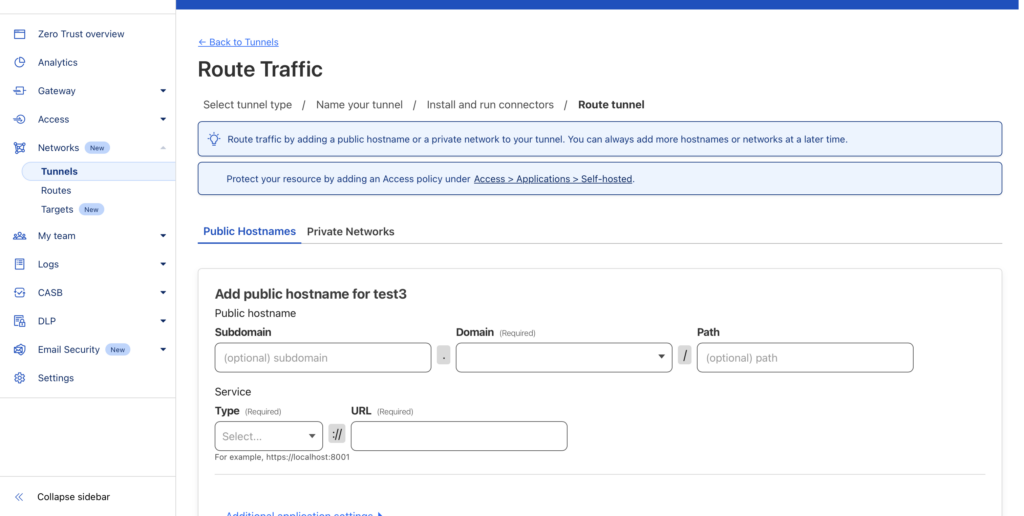
Lets say you want to port forward your Jellyfin instance, you can put the subdomain as jellyfin (or even leave it empty if you want the root of your domain to point to jellyfin). For domain, select your domain from the drop down list.
For URL put the IP and port of the service you want to expose, in this case for my it’s localhost:8096. Select type as http or https depending on whether your service supports https.
After that, click on save tunnel and you’re done! Your service should be exposed to the internet!
Note: Cloudflare tunnels doesn't support UDP traffic so if you want to expose a Minecraft Bedrock server to the internet which only uses UDP then the above method won't work. Use the following method if tunnels don't work.Tailscale + VPS
This basically takes advantage of a VPS that has its own public IP, we’re basically gonna tunnel traffic from your home server to the VPS using Tailscale. Google and Oracle provide free tiers for virtual private servers and oracle has the most generous offering (24GB RAM 4 ARM cores and 200gb SSD storage).
We’re gonna start by installing Tailscale on both the VPS and your server using the following command:
curl -fsSL https://tailscale.com/install.sh | shAfter that, login to your Tailscale account by clicking the link that shows in the terminal. After that we need to install something called a reverse proxy on your VPS, in this example we’re going to be installing caddy. You can install Caddy by following the instructions over at: https://caddyserver.com/docs/install
After installing caddy we can now get to forwarding requests from your vps server to your home server. Lets say you want to expose port 8096 from your home network to the internet, first open the CaddyFile (this is used to edit caddy’s configuration)
sudo nano /etc/caddy/CaddyFileThen append the file (or delete the entire contents and add):
:8096 {
    reverse_proxy YOUR_TAILSCALE_HOME_SERVER_IP:8096
}

#change 8096 to whatever port you want to port forward
Once you added the above line, press Control + X and enter ‘y’ to save.
Then run the following code to reload caddy:
sudo caddy reloadThen go to your virtual private server’s control panel and allow connections to the port that you would like to port forward. The steps to do so depends on the cloud provider you use but there most probably will be a guide published by them.
After that, you’re pretty much done! Now you can use your VPS server’s public IP address to access your services!
– aaron